 Plyveo
App guide
Everything you can do in Plyveo
From signing in to your final scorecard: this guide covers every flow available in the app, what happens to your data and how to resolve the most common issues.
1. Getting started
Plyveo uses social sign-in only. You do not need to create a separate password for the app.
- Open Plyveo and choose Continue with Google, available on every supported device.
- On iPhone or iPad, you can also choose Continue with Apple. Apple sign-in is iOS only and does not appear on Android.
- Complete the account selection in the provider's panel.
- Before continuing, you can open the App Privacy Policy and App Terms and Conditions links on the sign-in screen.
If sign-in fails, close the provider panel and try again. If a previous attempt is still open, complete it or wait a moment. A provider conflict requires you to use the same method you chose when you first registered.
2. First-time setup
Orb asks a few questions to personalize your starting point. You can skip this flow and use the full catalog right away.
- On the welcome screen, tap Let's get started.
- Choose whether to share pseudonymous usage statistics. Analytics consent is optional, and the app works the same way if you decline.
- Enter your name or a nickname, or choose I'd rather not.
- Select your professional area and the level closest to your experience.
- Open the recommended test with Start, choose Explore all tests or use Skip.
You can revisit your name, language, preferences and recommendations later; the initial recommendation does not limit the catalog.
4. Home and your weekly goal
Readiness updates with your evaluations and can rise or fall between sessions. A draft that has not been evaluated does not change readiness.
- Check Readiness and completed tests for an overview of your current progress.
- Open Weekly goal and choose either 3 or 5 sessions per week.
- Use Recent activity to return to your latest scorecards.
- If you have unfinished practice, use the Continue card to resume it.
- Use Start here, the recommended areas or the suggested simulation to choose your next practice session.
The goal ring counts this week's sessions and updates from progress saved locally.
5. Finding the right test
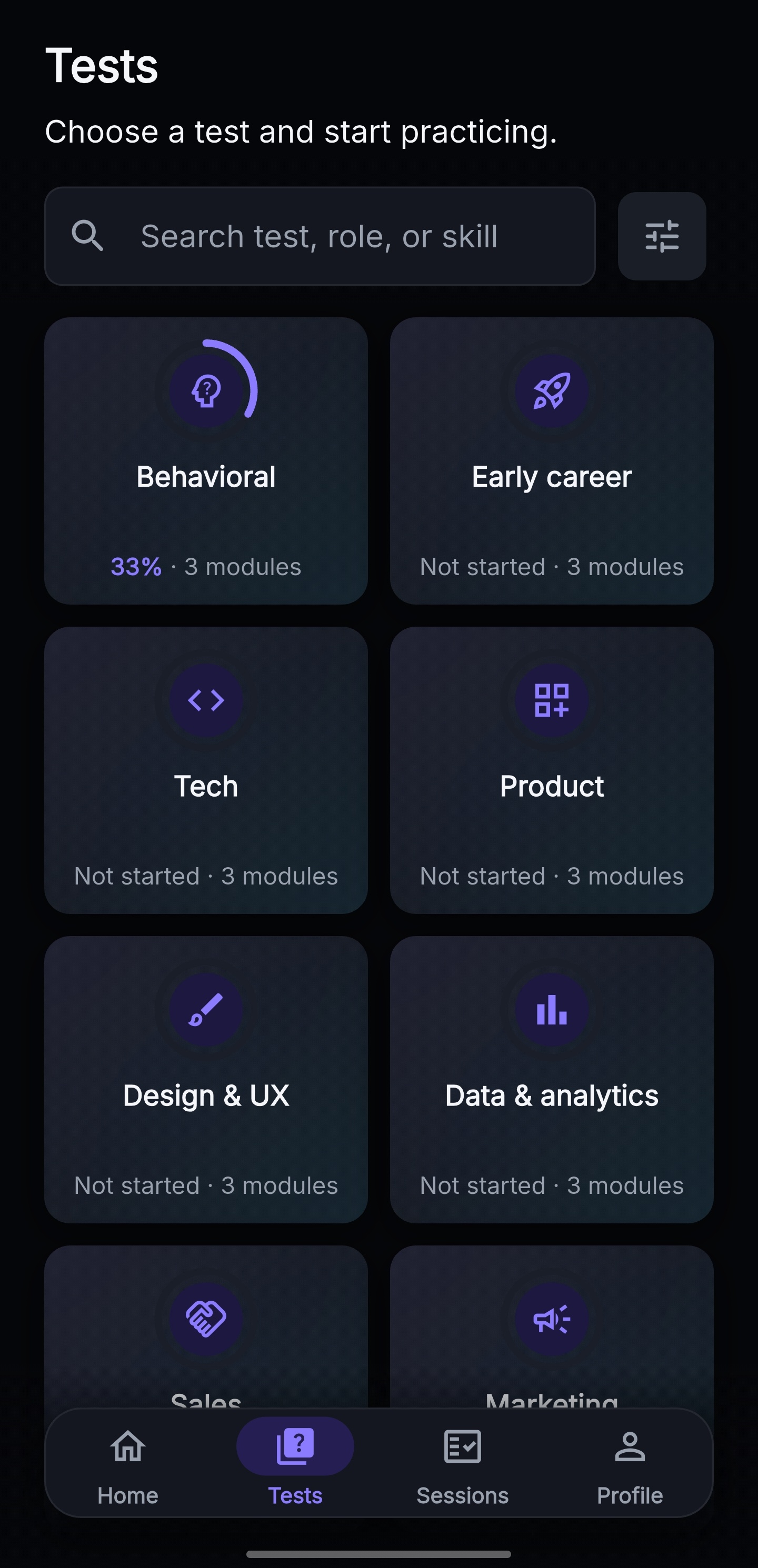
The catalog is organized into ten categories: Behavioral and Leadership, Early Career, Tech, Product Management, Design and UX, Data and Analytics, Sales, Marketing, Corporate Finance / FP&A and Operations.
- Open Tests to explore the categories, or use Search tests, roles or skills.
- Tap the filter action and choose a Category and a Level.
- Confirm with Apply. Active filters appear as chips above the results.
- Remove an individual chip, or use Clear all or Reset to return to the full catalog.
- If you see No tests found, clear the search or filters and try again.
6. Understanding and starting a test
Each category contains three standard tests and one separate simulation. Standard tests take approximately 15–35 minutes; simulations have an 18–20 minute timer and are designed for a single session. When time expires, you can continue in overtime.
- Open a category and choose a standard test or the Interview simulation card.
- On the detail screen, check the level, number of questions, estimated duration, Skills practiced and the preparation Tip.
- For a simulation, also read the available time, overtime rule and the displayed effect on readiness.
- Tap Start practice to create a local session.
You can explore the entire catalog. The free allowance covers 3 new test sessions: a credit is used on the first successful AI evaluation, and other answers in the same session do not use another one, up to the limit of 50 successful evaluations per session. Repeating the same catalog test in a new session uses a new credit at its first successful AI evaluation. A temporary daily limit may prevent a new session from starting; a session whose first AI evaluation has already succeeded can continue up to the limit of 50. Plyveo Pro, with expanded AI access, is not yet available.
If an unfinished session already exists for that test, Plyveo automatically resumes the most recent one instead of creating another. Practice uses the app's language. There is no dedicated per-session language picker.
7. Completing guided practice
Answers are always open-ended: there are no multiple-choice answers and no manual self-assessment as a substitute.
- Read the question and write your answer in the open text field, up to 2,000 characters.
- If your device and permissions allow it, use the microphone to Start dictation and then Stop dictation.
- Your draft is saved automatically. If you leave, confirm Exit practice and resume later.
- Review your answer and tap Evaluate to submit it for AI evaluation.
- Review the feedback. Only after the evaluation is ready can you use Next or, on the final question, Finish.
If local saving fails, stay on the question and use Try again before leaving.
8. Receiving AI feedback
Each evaluation can show up to three strengths and up to three areas to improve.
- Wait while Plyveo reads your answer, checks it against the rubric and prepares your feedback.
- Read Strengths and Areas to improve.
- Open Model answer to compare its structure and content with an example.
- When relevant, review the In English note about language clarity.
- Use Next only after you have received the required evaluation.
There is no manual alternative. If you are offline, reconnect; if AI is temporarily unavailable, wait; for a transient error, use Try again. If a temporary daily limit prevents a new session from starting, try again after the counter updates; a session whose first AI evaluation has already succeeded can continue up to 50 successful evaluations. If the free allowance is exhausted, the app explains that no new session can be started: there is no active checkout or in-app purchase.
9. Simulations and results
The simulation timer runs on your device. The AI service evaluates your answers but does not receive the session time.
- Before starting, read the available time and the rules shown on the detail screen.
- During practice, check the countdown in the header.
- When time runs out, you can continue: overtime does not block questions, evaluations or completion.
- In the summary, read the readiness penalty, which is applied only when displaying the result.
- On the scorecard, expand scores by criterion and filter by Strong or Weak to review your answers.
- Tap Share to generate an image of your result and open your device's share sheet.
The time penalty does not change the AI scores for individual answers; it provides context for the simulation's overall readiness result.
10. Managing sessions
Sessions separates Active and Completed practice and groups attempts for the same test.
- Tap an active session to continue from the question where you left off.
- Open a completed attempt to view readiness, scores by criterion, answers and AI feedback.
- To delete an eligible session, tap the Delete session icon on its active card and confirm.
11. Backup and portability
Sessions are stored as JSON files in the app’s private storage; in-progress drafts are stored in local preferences. When configured, operating-system backup may include sessions, drafts and preferences through Android Auto Backup or iCloud Backup. Plyveo cannot start, verify or delete those backups. Plyveo does not provide a proprietary cloud-sync backend.
- Go to Profile → Backup to see the available options.
- Tap Export backup: Plyveo creates a JSON file containing your sessions and opens the share sheet.
- Store the file wherever you prefer. It is not tied to your Plyveo account and can also be transferred between platforms.
- To restore it, choose Import backup and select a JSON file exported by Plyveo.
- The app validates the format and version, merges sessions by ID and keeps the most recent update.
Manual export includes sessions and answers that have already been saved, but does not include the current transient draft held in preferences.
An invalid file is rejected. If it comes from a newer version of Plyveo, update the app and try again. Importing does not indiscriminately replace sessions that are already more up to date.
12. Personalizing your experience
All these settings are available in Profile.
- Open Theme and choose System, Light or Dark.
- Open Language and choose Italiano or English. This choice also changes the language used in practice.
- Enable Practice reminders if you want local notifications for consistency and your weekly goal; accept the system permission when prompted.
- Enable or disable Pseudonymous usage statistics.
If you denied notifications, enable Plyveo in your system settings before turning reminders back on in the app.
Pseudonymous usage statistics are optional: declining them does not change core functionality. Custom events may include metadata such as test or category IDs, question position, duration, readiness, screen and feedback vote, but do not include name, email, answer text, questions, rubrics, model answers or AI feedback content. The Analytics client identifier is distinct from the Firebase Authentication UID, which Plyveo does not deliberately set as the GA4 user_id.
13. Privacy, account and data
When you request AI evaluation, Plyveo sends the answer, question, rubrics and model answer needed for scoring to its backend and AI provider. This content is not included in Analytics.
- Go to Profile → Account to see your sign-in provider and display name.
- Use Edit name to change your displayed name.
- Use Sign out to end your signed-in session. Signing out normally preserves the local sessions for the same account.
- Use Delete account and confirm to start remote deletion.
If prompted, sign out and sign in again with the same social provider, then retry: for security, Firebase may require a recent sign-in. After remote deletion succeeds, Plyveo deletes the Firebase account and local data from the current installation, except theme and language. To prevent abuse and repeated use of the free allowance, Plyveo retains a pseudonymous usage-counter record after account deletion. With each successful AI evaluation, the record's expiry date is reset to 24 months after that evaluation; Firestore deletes the record automatically, normally within 24 hours after expiry. The record does not contain answers, questions, rubrics, feedback, names, or email addresses. Recreating the account with the same provider may retain quota state until expiry. System backups, exported files and data retained by the sign-in provider follow their own controls.
Local deletion includes sessions, answers, drafts, feedback, reminders and Analytics consent. It cannot delete files exported outside the app, historical operating system backups or data still subject to provider retention periods. For details, see the App Privacy Policy and the Delete account page.
14. Frequently asked questions
I have no connection. Can I continue?
A connection is required for a new social sign-in and for AI evaluation. Once signed in, while offline you can browse the local catalog, review history on the device, and write or save drafts; without feedback you cannot move forward.
I denied microphone access. How can I use dictation?
- Open your device settings and find Plyveo's permissions.
- Allow microphone access and, if requested by the system, speech recognition.
- Return to your practice and tap Start dictation. You can always type without the microphone.
I see “Maintenance” or “Update required”
During maintenance, wait for the service to become available again. If the update is mandatory, use Update to install the required version before continuing.
Which features are not available?
Plyveo does not offer multiple-choice questions, manual self-assessment, bulk session deletion, in-app purchases or checkout, session sync between devices, or a dedicated language picker for an individual session. To practice in English, change the whole app's language from Profile → Language.